How To Secure Remote Access To Dental Software
Protect patient data with DDS Rescue's expert guide to securing remote access to dental software. Get HIPAA-compliant controls today.
Key Takeaways
- Dental staff connect to Dentrix, Eaglesoft, or Open Dental remotely through two main approaches, remote desktop sessions and VPNs, and each pathway needs its own security configuration.
- MFA (multi-factor authentication) must protect the remote session itself, not just the software login inside the office.
- Phishing emails to front desk staff are the most common ransomware entry point in dental practices, with exposed remote desktop protocol (RDP) often cited as the second or third most common vector, and automated scanners typically find an open port within hours of exposure.
- A signed BAA is required before disclosing PHI to a vendor that creates, receives, maintains, or transmits PHI on a covered entity’s behalf, and HHS allows limited exceptions for conduit-only entities and vendors whose access to PHI is only incidental when reasonable safeguards are in place.
- DDS Rescue configures and independently verifies the entire remote-access stack, including the HIPAA requirements that a standalone remote-access product does not address.
How To Secure Remote Access To Dental Software: The 7 Controls
Securing remote access to dental software means controlling every pathway into the practice management database so only approved people, on trusted devices, with proper authorization can reach patient data. The HIPAA Security Rule calls for documented, risk-based safeguards across access control, audit controls, person or entity authentication, and transmission security, and remote access touches all four areas.

- Identify every pathway into your dental software.
- Turn on multi-factor authentication for every pathway, including the remote session itself.
- Close exposed remote desktop and put a gateway or zero-trust access in front of it.
- Require per-session approval for vendor and IT remote access and turn off always-on tools.
- Lock down home devices with full-disk encryption, auto-lock, and endpoint detection and response.
- Confirm a signed Business Associate Agreement with every vendor that can see patient data.
- Document the setup and have the configuration independently verified.
The Three Ways Dental Staff Actually Connect And How To Rank Their Safety
Most dental practices run an on-premise server holding the practice management database. Remote access usually means a remote session into the office network, so the real security question focuses on that pathway.
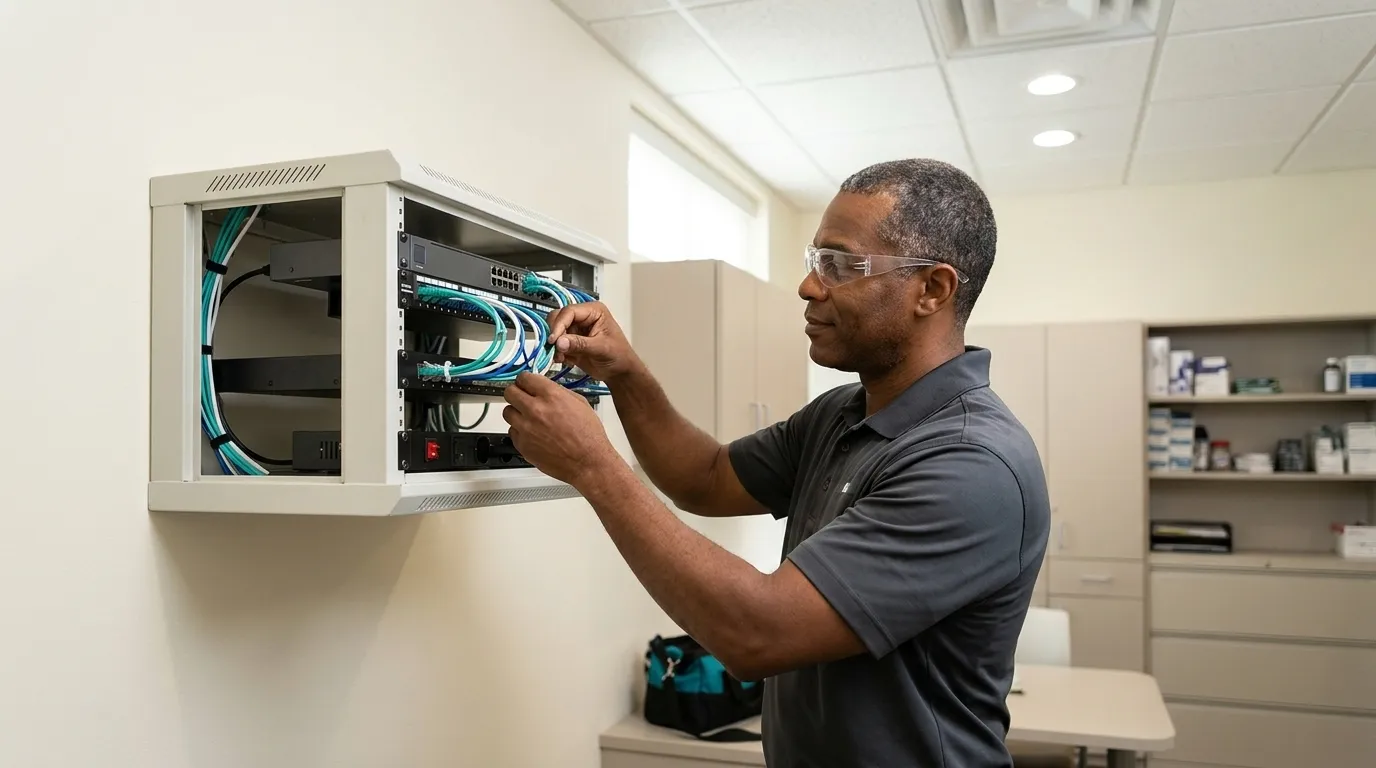
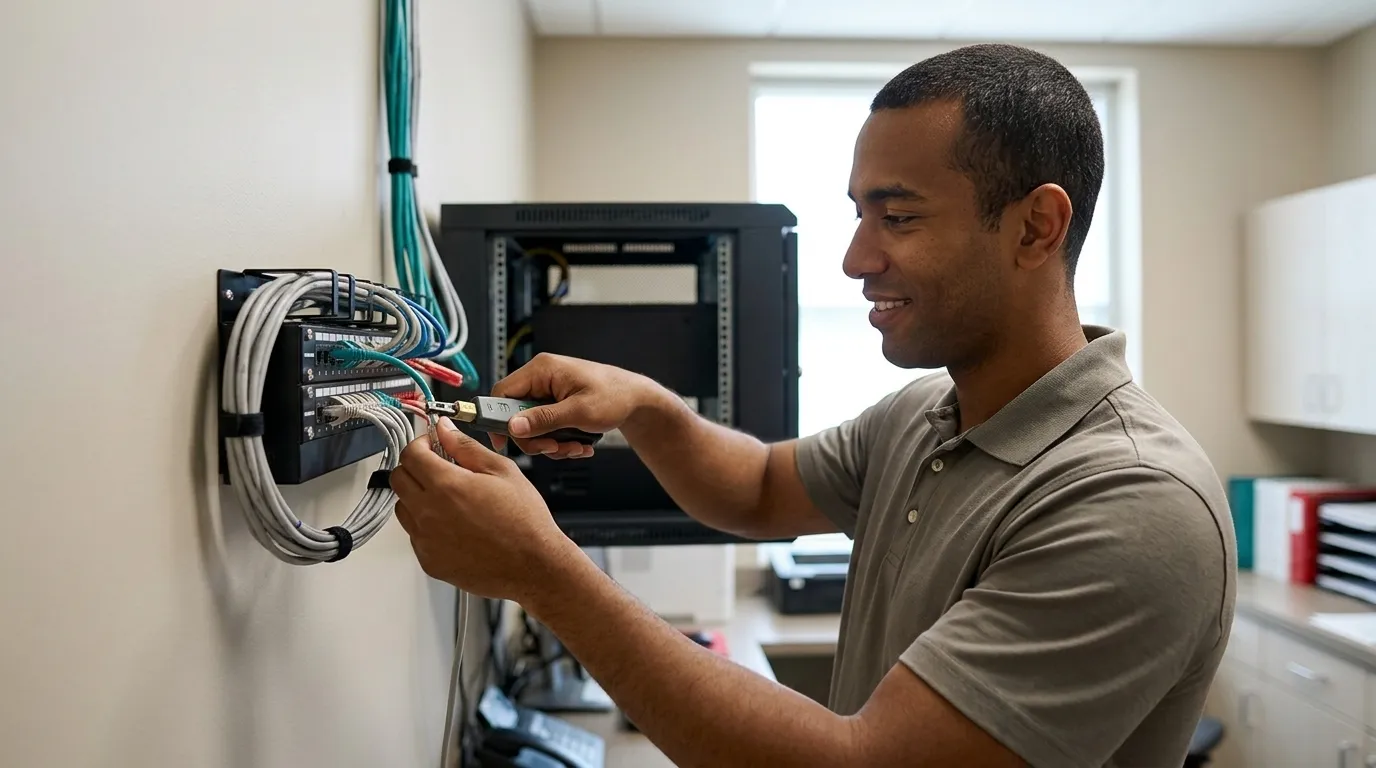
Remote desktop into an office workstation. A staff member opens a remote desktop client from home and connects to a workstation inside the office, which then reaches the Dentrix, Eaglesoft, or Open Dental database on the server. The main risk sits in how that connection is exposed. Port 3389, the default remote desktop port, should never be open directly on the practice router. When it is open, automated scanners find it within hours and begin continuous login attempts using leaked credential lists. The minimum configuration is a remote desktop gateway: a single controlled entry point that authenticates users before letting them reach a desktop. Pair it with MFA and individual per-user accounts. Shared logins break the audit trail and violate HIPAA workforce access management under 45 CFR 164.308(a)(4), which requires access to ePHI to be assignable and revocable per workforce member.
VPN into the practice network. A VPN creates a private encrypted tunnel from a home device into the office network and improves on raw remote desktop exposure, but it carries its own risk. CISA warns explicitly that a VPN is only as secure as the connected devices, so endpoint security has to be enforced on every device that connects. The deeper structural problem is the level of access a VPN grants once connected. Most VPNs provide broad network access rather than access to just one application, so a stolen credential can expose the entire environment. Minimum configuration is a patched VPN with MFA and endpoint security on every connecting device.
Vendor and IT remote support tools. Billing companies, imaging vendors, IT providers, and practice management software support teams all need a way in. The risk comes from always-on access with shared credentials and no logging. Unattended remote-support tools installed on the practice management server with a static password and no MFA are one of the most common initial-access vectors for ransomware in dental practices. Minimum configuration is per-session approval, a log of who connected and when, and removal of the tool when the work is complete.
NSA’s Zero Trust Implementation Guidelines describe a framework that assumes no entity is trusted by default regardless of location and verifies identity, device health, and access scope on every session. A zero-trust remote-access approach fits larger or multi-location practices that need granular, application-level access control and ranks as the safest pattern when implemented correctly. A properly configured remote desktop gateway with MFA provides a strong and practical baseline for a single-location practice with a small team. A VPN remains viable when endpoint security is enforced on every connecting device and access is segmented. The HHS Health Sector Cybersecurity Coordination Center (HC3) recommends MFA, regular patching, network segmentation, and monitoring of access activity as core mitigations for remote-access risk in healthcare settings.
How these controls apply in practice depends on which software the office runs, so the next section walks through the major platforms.
Per-Platform Notes For Dentrix, Eaglesoft, Open Dental, And Cloud PMS
Dentrix remote access. Traditional on-premises Dentrix is not natively web-based, so remote access requires additional setup beyond the base installation, typically a remote desktop session into the office network where the database server lives. The security focus stays on that pathway. Dentrix Ascend is cloud-native and browser-accessible, which shifts the dominant threat from an exposed server port to account compromise via phishing and makes MFA on every account and a signed BAA with the cloud host essential.
Open Dental remote access. Open Dental runs on a practice-hosted MySQL or MariaDB database, and remote access is typically handled through standard remote desktop or VPN configurations rather than a built-in remote-access feature. Open Dental Cloud is a hosted option that shifts database management to the vendor. In both models, the practice still owns access control, MFA, device rules, and the BAA with any outside company that can see patient data.
Eaglesoft remote access. Eaglesoft is an on-premise, server-based practice management solution that requires a physical server. Patterson recommends a dedicated Eaglesoft server for offices with six or more workstations, and Windows Server operating systems are supported only on a dedicated server. Remote access follows the same on-premise server pattern: a remote session into the office network, with security centered on how that session is authenticated, logged, and controlled.
Cloud-hosted practice management systems. Cloud-hosted systems move the database to the vendor but do not remove the practice’s obligations. Cloud shifts server-hardening to the vendor but changes the risk profile. Account compromise via phishing becomes the dominant threat, and the practice still owns endpoint security, user access controls, staff behavior, and the BAA with the host.
Governing Vendor And IT Remote Access
Vendor and IT access often create the largest blind spots in a dental network. Former employees, old vendors, and unused integrations frequently retain access to dental practice systems simply because no one removed them. A practical standard for vendor access uses per-session approval instead of always-on access, a log of who connected and when, and removal of remote-support tools nobody remembers installing.
The BAA requirement is strict. A BAA, or Business Associate Agreement, must be signed before any outside company is granted access to systems containing patient information. A covered entity can be held liable for a business associate’s HIPAA violation if the covered entity knew, or by exercising reasonable diligence should have known, of a pattern of activity constituting a material breach. Encryption alone does not make a tool HIPAA compliant without a BAA and a documented risk assessment. The HIPAA Security Rule’s access control, audit control, person or entity authentication, and transmission security safeguards all apply to vendor sessions, so shared vendor credentials weaken person or entity authentication and sessions with no logging weaken audit controls.
Practices should require vendors holding access to patient data to disclose every security incident in the last five years, list every vendor with standing access to the network, and document how that access is authenticated, logged, revoked, and whether sessions require practice approval.
Get Your Vendor Access Reviewed
The 15-Minute Audit: Check What You Already Have
This quick audit shows what is already in place and where the gaps sit. It does not require deep technical expertise, only knowing where to look.
- Find every remote-access tool installed on office machines. Check the system tray, installed programs list, and startup items on the server and each workstation.
- Check whether remote desktop is reachable from the open internet. Ask your IT provider whether port 3389 is forwarded on the router, or use a port-checking tool from outside the office network.
- List every outside company with a way into the practice, including the IT provider, billing company, imaging vendor, practice management software support, and any others.
- Confirm MFA is active for each remote pathway, including vendor connections.
- Confirm a signed BAA exists for each outside company with access to patient data.
- Check whether home laptops used to access the practice are encrypted and set to auto-lock after a short idle period.
If the audit turns up a problem, such as an open port, a missing BAA, or an always-on vendor tool nobody authorized, close the pathway first because exposed services are scanned continuously and every extra hour adds risk. Disabling the account or blocking the port stops the immediate exposure. After that, have the configuration rebuilt properly and verified by someone who can distinguish between a setup that is genuinely safe and one that only appears safe. See also: Dental IT Security Solutions: What Every Practice Needs and How To Protect a Dental Office From Ransomware.
Request A Remote-Access Configuration Check
Why DDS Rescue Is The Best Choice For Securing Remote Access To Dental Software
A standalone zero-trust remote-access product secures the connection but does not perform a risk assessment, write the policies, sign as a business associate, or represent the practice when HHS sends a letter. The office manager still has to solve the HIPAA half with another provider, and a tool cannot confirm whether the configuration is correct. DDS Rescue handles both the technical controls and the compliance work.

DDS Rescue’s HIPAA Security Risk Assessment is performed by remoting into the actual network and validating what is installed, including firewall type, Windows update status, server condition, whether EDR (endpoint detection and response) is present, and whether the practice is running business-class email. The assessment functions as a mock audit of the real environment and surfaces remote-access problems that a self-reported checklist often misses.
The security work is led by a CISSP, or Certified Information Systems Security Professional, which is a senior credential in information security that requires at least five years of hands-on security work. When a letter from HHS arrives, the CISSP establishes forensically what happened and whether the event constitutes a breach. DDS Rescue’s on-staff HIPAA attorney, Kezia Cook-Robinson, spent ten years at the HHS Office for Civil Rights, including service as HIPAA Team Lead, and she is listed on DDS Rescue’s advisory board while also holding a role at Verily Life Sciences. She handles the legal response and communication with regulators.
Managed cybersecurity from DDS Rescue runs the controls day to day, including enterprise-level EDR, business-class email, managed Windows updates, dark web audits, staff training, and 24/7 monitoring. More than 1,000 practices nationwide work with DDS Rescue, and compliance clients renew at an 85 percent rate. Every walkthrough, risk assessment, and training session is done live and virtually with named, reachable humans. For practices in San Diego County, on-site IT work is also available, while compliance, HIPAA, backup, and cybersecurity services are delivered nationally.

DDS Rescue operates as a third party rather than the practice’s own IT team and can work alongside an existing IT provider. See also: Dental Network Security: A Plan With Clear Accountability.
Talk With A DDS Rescue Specialist
Getting Remote Access Handled
DDS Rescue combines a CISSP-led IT and cybersecurity team with dental-exclusive HIPAA compliance, so the same company that hardens the remote-access pathway also owns the risk assessment, the policies, and the attorney who answers HHS. The seven controls above, identifying every pathway, enforcing MFA, closing exposed remote desktop, governing vendor access, locking down endpoints, confirming BAAs, and verifying the configuration, create a complete picture. The 15-minute audit shows the office manager where the gaps are today, and independent verification by someone accountable confirms that the environment is truly safe.
Frequently Asked Questions
Can Dentrix Be Accessed Remotely?
Yes. Traditional on-premises Dentrix requires a remote desktop session or VPN connection into the office network where the database server is installed, because remote access is not built into the software itself. Dentrix Ascend is cloud-native and browser-accessible, so remote access is inherent to the platform. In both cases, the practice is responsible for MFA, access controls, endpoint security, and a signed BAA with any outside company that can reach patient data.
Does Open Dental Have Remote Access?
Open Dental does not include a built-in remote-access feature for the standard on-premises installation. Remote access is handled through the network layer with a remote desktop session, a VPN, or a hosted arrangement, and the practice configures and secures that pathway independently. Open Dental Cloud is a hosted option managed by Open Dental, which shifts database administration to the vendor but leaves the practice responsible for endpoint security, user access controls, and the BAA with the host. Open Dental’s own documentation notes that shared logins weaken HIPAA compliance and that every user should have a unique username and password.
Is There Free Remote Access Software For A Dental Office?
Consumer free tiers of remote-support tools are not appropriate for patient data. Free versions of major remote-support and video platforms such as Zoom, Atlassian, Microsoft Teams, Google Meet, Webex, and Slack do not offer a Business Associate Agreement, which HIPAA requires before any outside company can handle patient data, although Doxy.me is an exception whose free plan includes an individual BAA for one provider. Using a free consumer tool to access a system containing patient records places the practice out of HIPAA compliance regardless of how the connection is encrypted because the BAA requirement applies to the vendor relationship.
What Is The Difference Between A VPN And Remote Desktop For A Dental Office?
A VPN creates an encrypted tunnel from a home device into the office network and gives the connected device access to network resources as if it were physically in the office. Remote desktop creates a session on a specific office workstation, and the user controls that machine remotely while the home device only sends keystrokes and receives screen images. The practical difference for security is scope. A VPN typically grants broad network access once credentials are validated, while a properly configured remote desktop gateway limits access to specific machines. Both approaches require MFA, patching, and endpoint security on the connecting device.
How Do You Control Vendor Remote Access To Your Practice Management System?
The operational standard is per-session approval, logging, and revocation. Before any session begins, the practice should authorize it explicitly rather than leaving a tool running continuously. Every session should be logged, including who connected, when, and for how long. When the work is done, the access should be removed or disabled so it does not remain as a standing pathway. Every vendor with access to patient data must have a signed BAA before the first session, and practices should audit installed remote-support tools periodically.
Does Remote Access To Dental Software Need To Be In A HIPAA Risk Assessment?
Yes. The HIPAA Security Rule requires covered entities to conduct an accurate and thorough assessment of the potential risks and vulnerabilities to the confidentiality, integrity, and availability of electronic protected health information. Remote access is a direct pathway to ePHI and must be included, including the specific tools in use, how they are configured, who has access, whether MFA is enforced, whether sessions are logged, and whether BAAs are in place.
What Should We Do First If We Find Remote Desktop Open To The Internet?
Close it immediately. Block port 3389 at the router or firewall before doing anything else. An open remote desktop port is being actively scanned and probed, so delaying the fix after investigation increases risk. Once the port is closed, review the access logs for the period it was open to determine whether any unauthorized sessions occurred. Then rebuild the remote-access pathway properly with a remote desktop gateway with MFA, per-user accounts, and logging, or an equivalent zero-trust approach. Have the configuration verified by a qualified third party before reopening remote access to staff.
Get Help Securing Remote Access